Clear the cancelled clutter
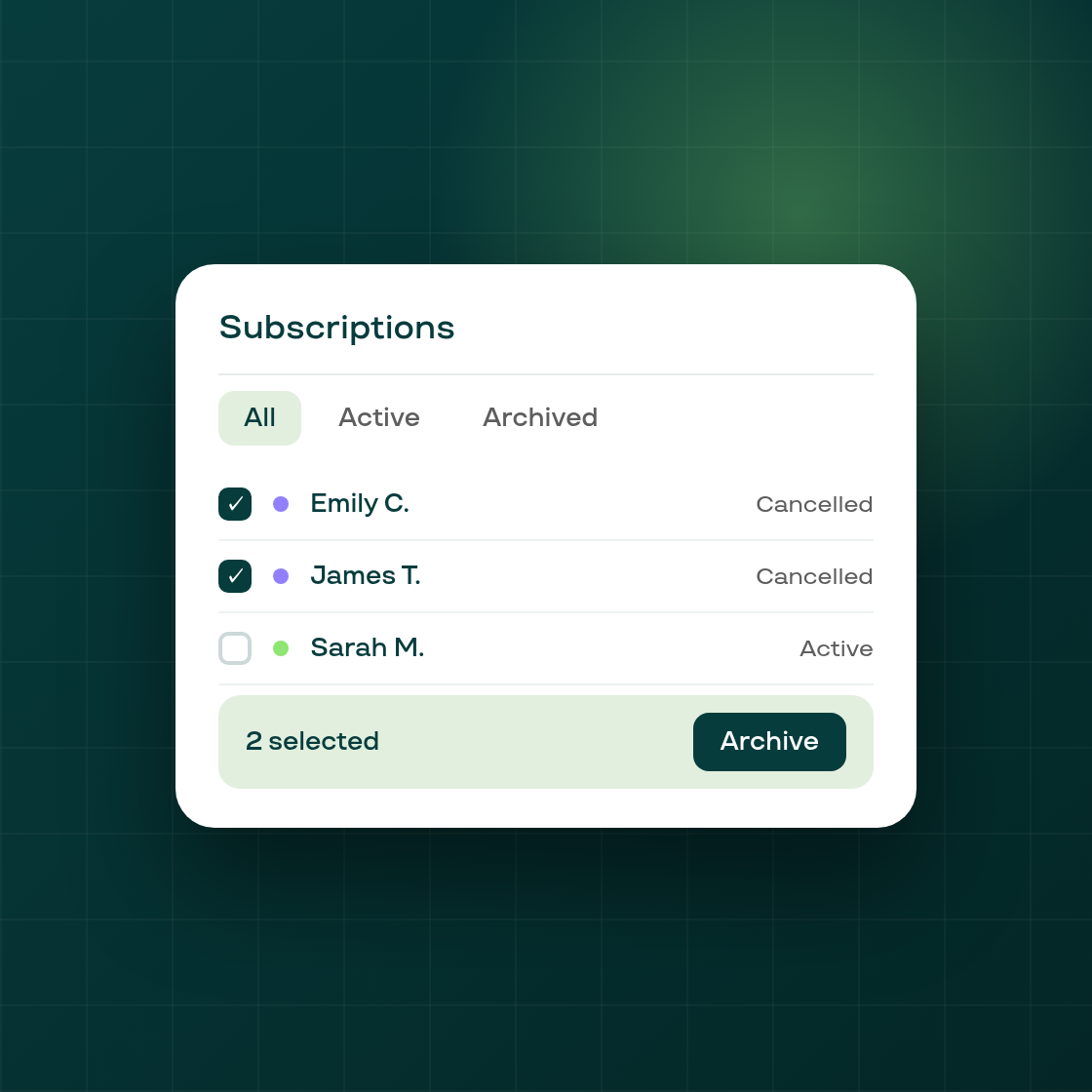
If your store has been running subscriptions for a while, your contracts list can fill up fast with cancelled entries. Until now there was no way to remove them — Shopify's API has no contract-delete mutation — so they just piled up. Merchants with a large subscriber history reported having more cancelled contracts in their list than active ones.
That changes today. You can now archive cancelled subscription contracts directly from the subscriptions list, and a new Archived scope keeps them out of your main view without deleting any data.
How it works
Select any number of cancelled contracts on the All scope and choose Archive from the bulk-actions menu. Archived contracts disappear from All, status-filtered (Active, Paused, etc.), and any other default scope — your working view stays focused on subscribers who matter right now.
When you need to find an archived contract — say, a subscriber who wants to reactivate — switch to the Archived scope and use Unarchive to bring it back into the regular list. Unarchiving is always available; nothing is lost.
A few things to know:
- Only cancelled contracts can be archived. Active, paused, or other non-cancelled states are rejected by the server — you cannot accidentally archive a live subscription.
- If a contract is reactivated on Shopify's side (status changes back to ACTIVE), Subi automatically clears the archived flag so it reappears in your normal list without any action from you.
- Archive and Unarchive are bulk-only in this release. There is no per-row toggle on the contract detail page.
The Archived scope is available immediately for all merchants — no settings change required. Head to Subscriptions in your Subi admin and look for the Archived tab to get started.