The widget editor, one click away
The subscription widget is typically the first thing a shopper sees when browsing a product with a subscription option. How it looks — button colors, text, layout, the way the subscription choice is presented — influences whether shoppers subscribe or move on. Subi's widget customization editor gives merchants full control over that appearance for each plan type. Getting to it, however, meant navigating away from the home page and into a separate settings area.
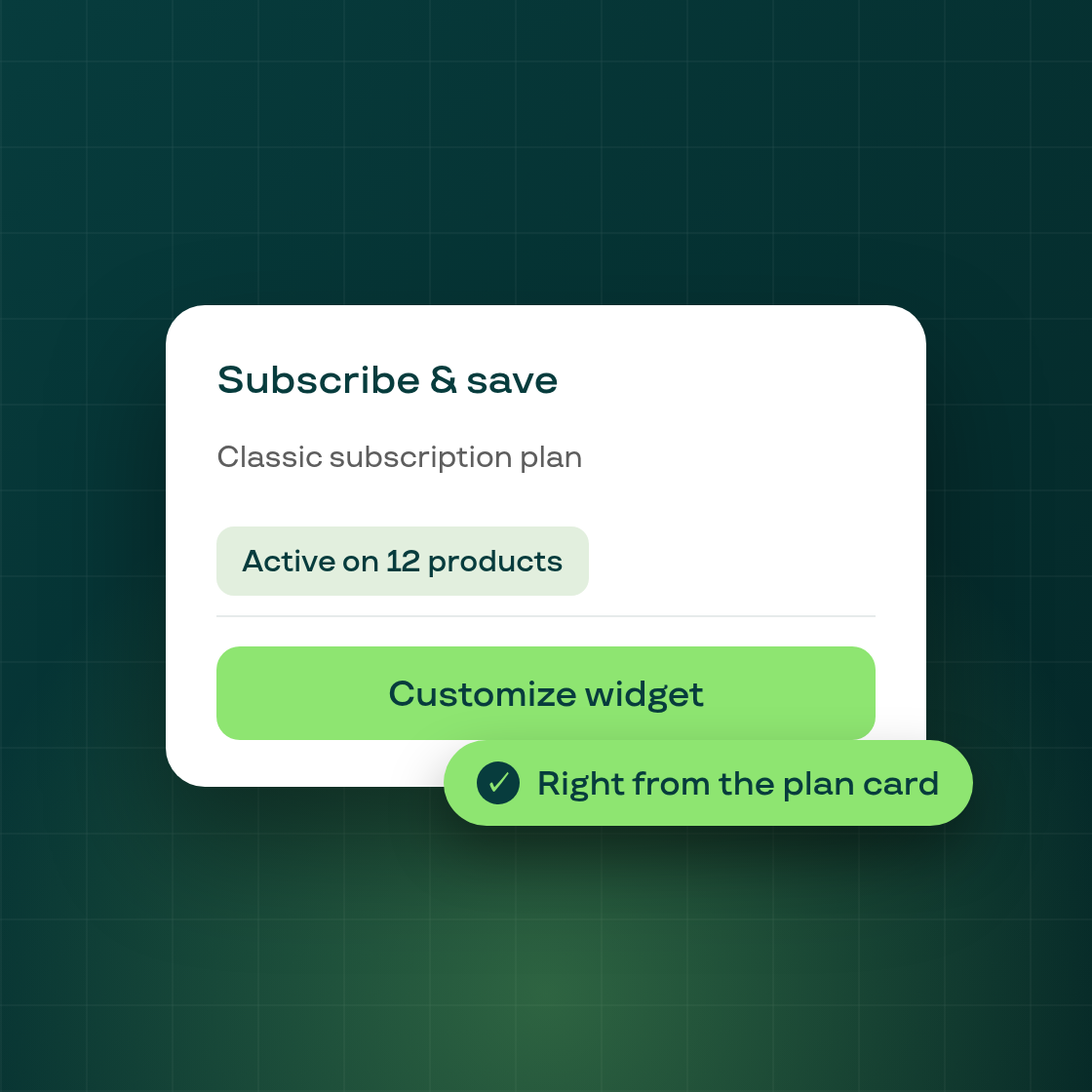
What's new: Each plan type card on the Subi home page now shows a Customize button once a plan of that type exists. Clicking it opens the widget customization editor in a full App Bridge modal, already pre-selected to the widget for that plan type — so you land exactly where you need to be, without extra navigation. The Create action moves into the card's overflow menu once a plan exists, keeping the most relevant next step front and center.
If no plans of a given type exist yet, the card continues to show Create as the primary action, with Customize available in the overflow menu.
Why it matters: Widget appearance directly affects conversion. Merchants who want to iterate on their storefront subscription experience — adjusting colors, text, or presentation — now have a shorter path from the home page to the editor. Whether you're setting up widget customization for the first time or making an incremental adjustment, the new shortcut removes a multi-step navigation detour from a task you're likely to revisit regularly.
To access widget customization, open your Subi admin home page and click Customize on any plan type card where you've already created plans.